DIY: Connect Chatbox to Your Own AI API (Free, Local Data Storage)
Step-by-step guide to install Chatbox, add your own API Key, and switch between DeepSeek, Qwen, and other models in one client – no more paying for subscriptions.
You’ve got your own API Key — DeepSeek, Qwen, Google’s free credits, whatever — but every time you want to use it, you’re opening tabs, copy‑pasting, and juggling between services. It’s a hassle.
Chatbox is a free, open‑source AI client that puts all your models in one window. And the best part: your chat history stays on your own computer — it never gets uploaded to anyone’s server.
In this guide, I’ll walk you through installing Chatbox, adding your API Key, and then switching between DeepSeek, Qwen, and Claude with a single click.
Once you’ve got the basics down, check out the advanced version for more settings and customizations.
1. What is Chatbox?
Think of Chatbox as a “universal remote” for AI — it can use its own cloud models, or connect to APIs you already have.
Compared to using web interfaces directly, Chatbox gives you:
- Local data storage: Everything stays on your machine — no platform is training on your conversations
- Multi‑model switching: DeepSeek, Qwen, Claude, and more, all in one window — switch with a click
- Cross‑platform: Works on Windows, Mac, Linux, and mobile
- Completely free: The client costs nothing — you only pay for your own API usage (or use free tiers)
- Code highlighting + Markdown: Great for developers and writers
Who is this for?
- You already have an API Key for DeepSeek / Gemini / New API and want a smoother workflow
- You don’t want a separate client for every AI service
- You care about data privacy and don’t want platforms reading your chats
2. Download and Install
Head to the Chatbox website: https://chatboxai.app/en
Pick your OS:
- Windows: Grab the
.exeand double‑click to install - macOS: Download the
.dmgand drag it into Applications - Linux: Download the
.AppImage, make it executable, and run it
3. Add Your API Key (The Core Step)
Once Chatbox is open, click the gear icon → Settings in the bottom‑left corner.

On the Settings page, find “Model Providers” and click the “Add” button at the bottom.
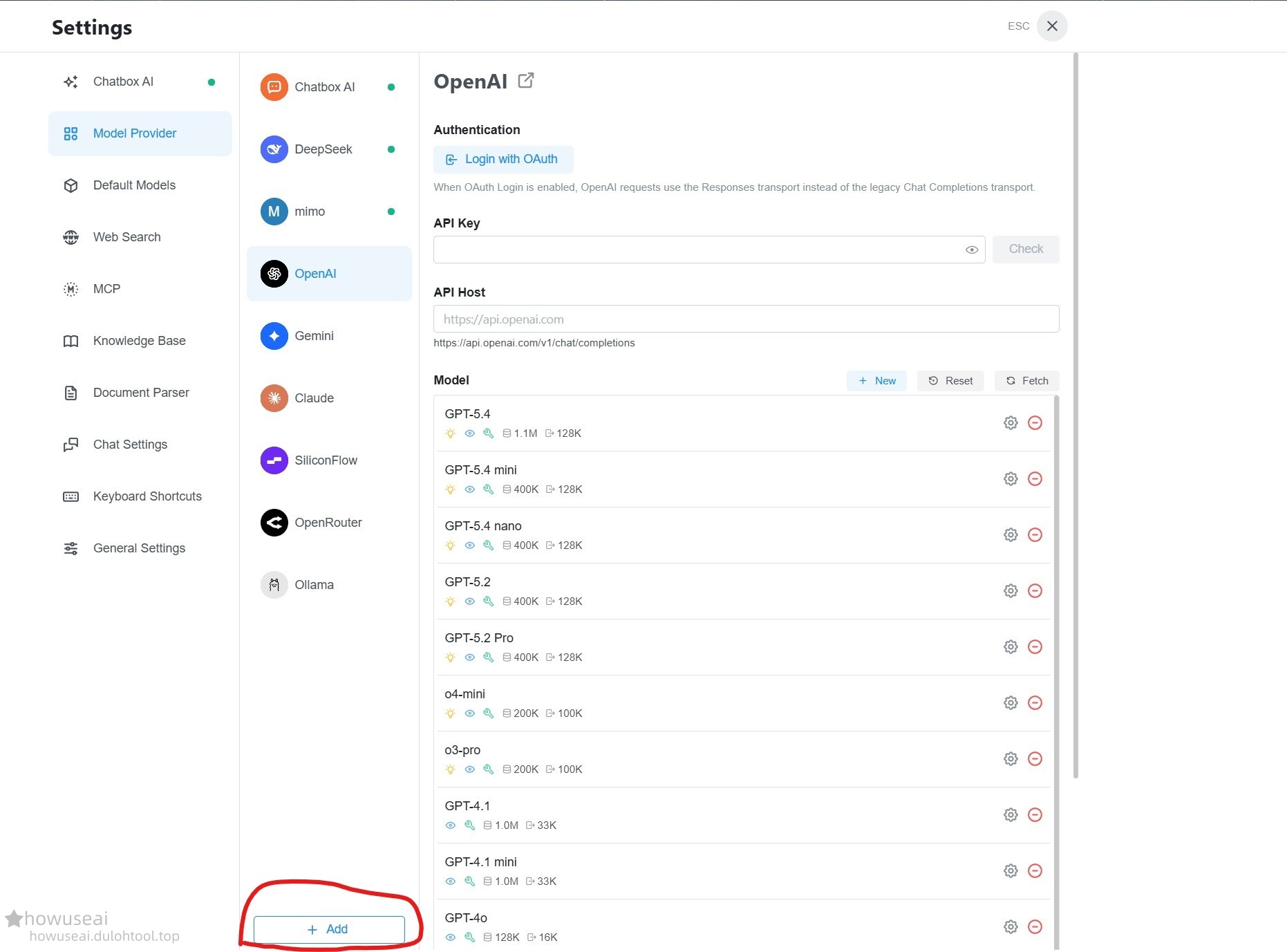
Fill in something like this:
| Field | What to enter |
|---|---|
| Name | Whatever you want, e.g. “My API” |
| API Type | Choose OpenAI API Compatible |
| API Key | Your key, like sk-xxxxx |
| API Host | Your API endpoint, like https://your-domain.com |
In the screenshot: field 1 is for the API Key, field 2 for the API Host, and field 3 for adding models.
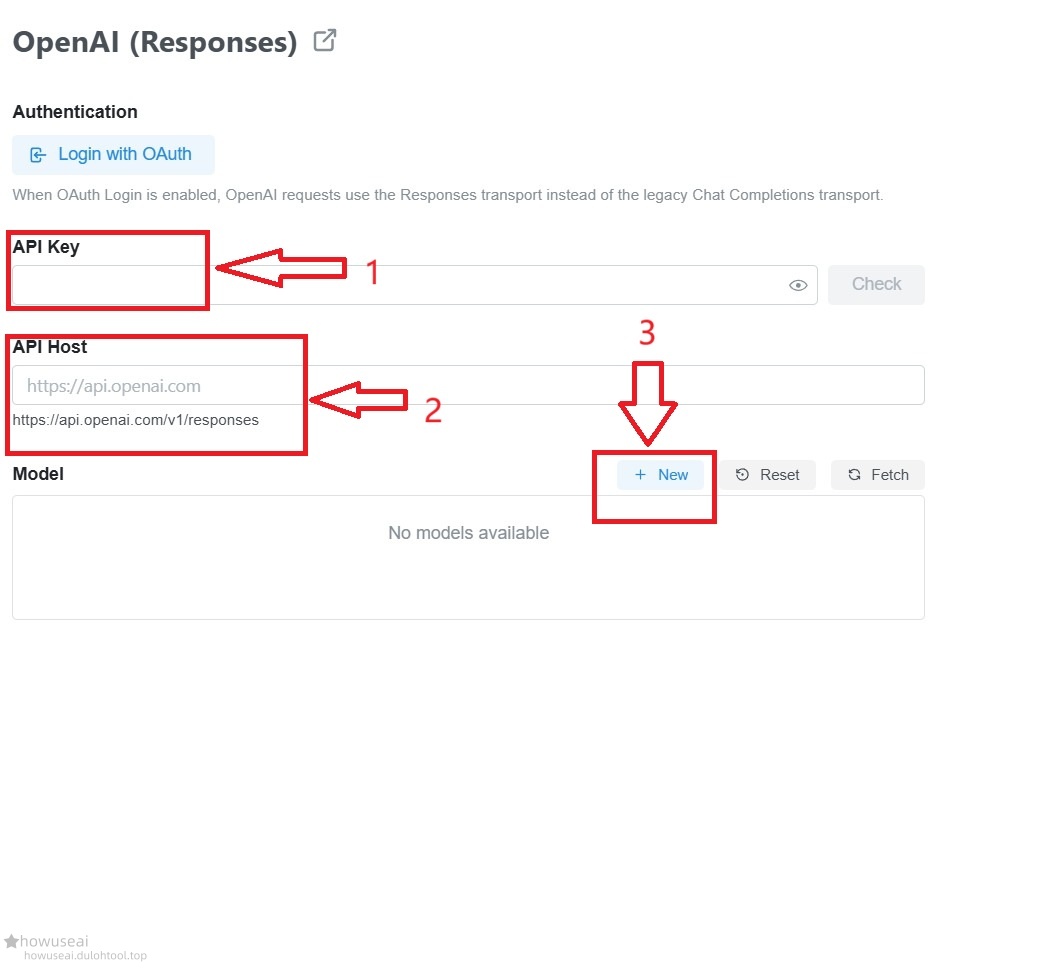
If your Key comes from these services
- DeepSeek official: API Host =
https://api.deepseek.com - Your own New API: API Host =
https://your-newapi-domain
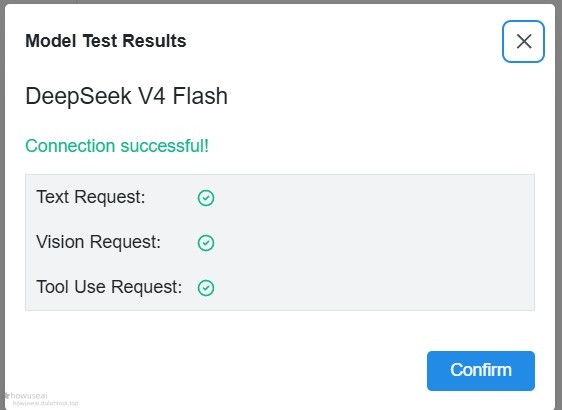
After filling things in, add the model names you want to use below — things like deepseek-chat, qwen-max, etc. Check the models you need, then click “Check” to test the connection.
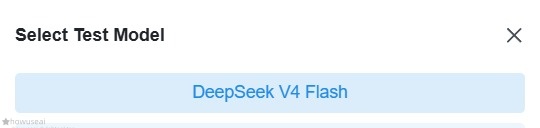
When you see “Connection successful”, save your settings.
4. Start Chatting
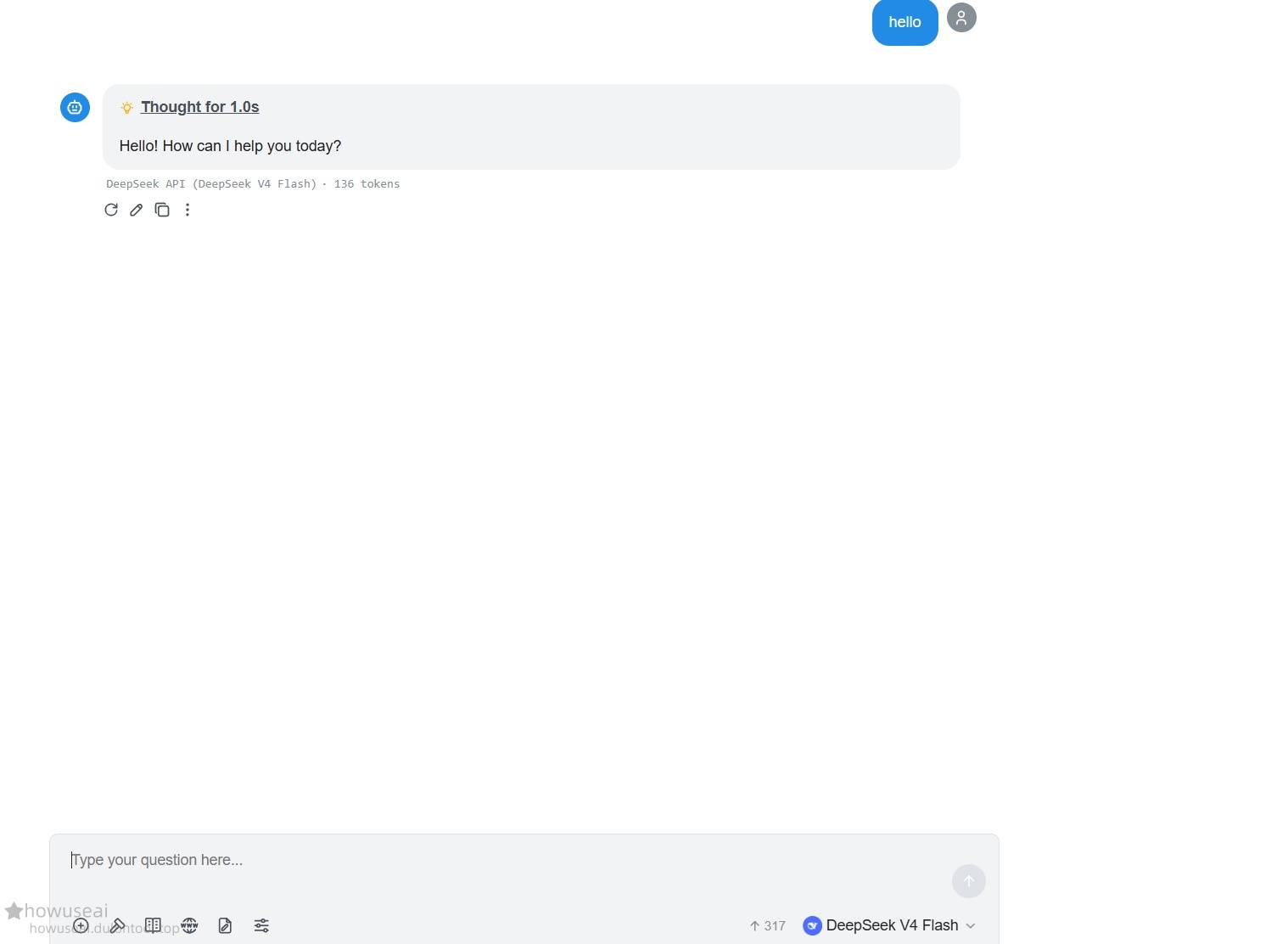
Back on the main screen, click New Chat, then pick the model you just added from the dropdown at the top.

Now just type in the input box, hit Enter, and the AI will reply.
5. FAQ
Connection failed / Errors
The most common causes:
- Wrong API Key — double‑check for extra spaces or a missing
sk-prefix - Incorrect API Host — don’t add
/v1at the end; Chatbox handles that automatically - Model name doesn’t exist — the name you entered has to be one your provider actually supports
- Network issues — if you’re behind a proxy, configure it in Chatbox settings
The model is really slow
- Some models are just inherently slower (like reasoning models) — try a smaller one
- Your conversation history might be too long; starting a fresh chat usually speeds things up
Where are my chat logs?
On your computer. Chatbox never uploads your conversations to any server. You can export them as Markdown or JSON anytime for backup.